
How to install Casualties: Unknown mods on Windows
Show the BepInEx and mod installation steps
- Close the game and back up the save or profile you want to keep. In Steam, open Manage → Browse local files for the exact edition you are modding.
- Use the BepInEx package and architecture the mod author names. Extract it directly into the game folder so the Windows loader files and BepInEx folder sit beside the executable, without an extra ZIP-name folder.
- Launch once and quit. Place the author’s plugin and documented dependencies in BepInEx/plugins, preserving the package structure if its instructions require it. Launch again.
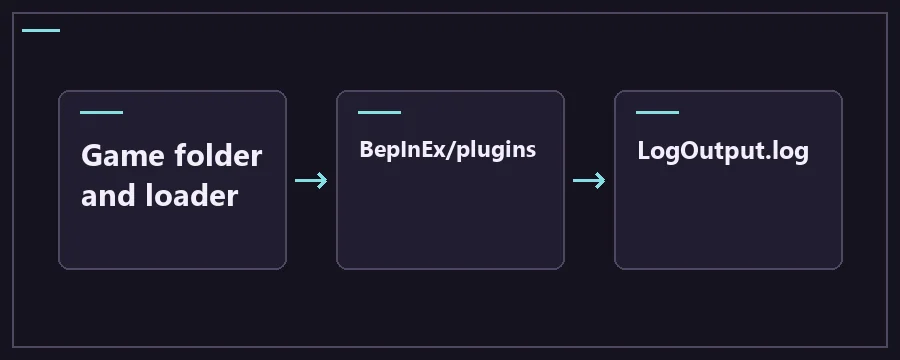
Read the BepInEx log after installing a mod
Open BepInEx/LogOutput.log. If there is no fresh log after launch, recheck the root folder and loader version. If BepInEx started but the plugin did not, check for its name, missing dependencies or version errors. Then confirm the feature the mod should add.
Roll back one change at a time
Quit before changing files. Move the new plugin out of BepInEx/plugins and test the menu or a disposable run. Follow the author’s uninstall steps if the mod adds save content, and use the pre-install backup if a save depends on that mod. Steam’s verify command can restore base files; it does not replace your backup or reliably remove added plugin files.
Find the right Steam install and check the folder layout
Use the Steam Library rather than a desktop shortcut to find the full game or demo. Steam can have more than one library drive, so a folder you found by searching may belong to another install. Open Manage → Browse local files from the exact entry you intend to launch. The top level is the folder with the executable. Copy the contents of the loader archive there, retaining its structure.
Run the unmodified game once before installing if this is a fresh Steam download. Then test the loader by itself. After the first launch, look for the BepInEx log and the folders the loader creates. If the guide says to add a plugin to BepInEx/plugins, use that folder inside the loader you just initialized. An author who distributes a complete tree may tell you to merge that tree at the root instead.
Check the archive’s README and requirements before you put packages together. A single plugin can have a required library or an included configuration folder. Keep the bundled files alongside the main plugin in their intended directories. If an archive includes its own BepInEx folder, opening it first helps you avoid putting that entire hierarchy inside BepInEx/plugins.
After a successful first launch with the plugin, identify what a useful test looks like. A menu mod should change a visible menu. A crafting mod should change the named part of the recipe screen, and a co-op mod should add the lobby controls. For a feature that only appears after entering the caves, create a disposable run and test the feature there. Save the before-and-after log if the result is unclear.
Keep a copy of any configuration you intend to preserve. If a project changes its settings layout across releases, use the author’s migration instructions. On the next boot, open the relevant settings and compare the behavior with the options you meant to copy. This keeps an old configuration change from being mistaken for a loader failure.
Scroll the table for more columns.
| Location | What to look for | Reference |
|---|---|---|
| Steam game root | The executable and the loader files beside it. Contrast the full game and demo paths before copying. | Game-specific folder layout |
| BepInEx/LogOutput.log | A fresh file after the most recent launch. The loader and plugin lines show which versions actually started. | Read the loader log on this page |
| BepInEx/plugins | Plugin files and their documented dependencies. Keep one active copy of each DLL. | Official BepInEx documentation |
| CasualtiesUnknown_Data/Lang | Built-in locale JSON. Use this route for loose translation files according to the translation instructions. | Standalone translation files |
Use the separate Casualties Together installation instructions
Casualties: Unknown mod installation FAQ
Which BepInEx download should I use?
Start with the package and architecture listed by your mod author. A higher version of the loader can use a different API from the one the plugin expects. Casualties Together 5.5.4, for example, names BepInEx 5.4.23.5. Compare your asset to the project’s Windows instructions and check that your game edition matches the version named in the mod’s archive.
What should happen before I install the first plugin?
The game should still reach its menu with only the loader installed. Quit and check for a fresh log in the correct BepInEx directory. That checkpoint tells you whether the loader works before adding any plugin. If the menu fails here, resolve the loader package and root folder first so you have a known starting point for later troubleshooting.
Why is there no LogOutput.log?
Check that you are looking at the same Steam folder you launched and that the loader files sit next to the executable. Double nesting often happens when an archiver creates a new directory with the archive name. Open that directory to see whether it contains the loader files that should be one level higher. Recheck the loader architecture and version against the author’s directions.
How do I tell whether my plugin started?
Open the log immediately after starting the correct game. Search for the plugin name or identifier and read the messages around it. A dependency error means the loader was able to see the plugin but could not start it properly. Even when the load is clean, confirm the change in the menu or in a disposable run.
Why does a second mod break the first one?
Plugins can share a dependency or alter the same part of the game. Verify that the loader and each plugin work on their own, then try the combination on a fresh test run. Compare any dependency requirements and keep only the versions you need. If support for the combination is unclear, send the author the exact package names and the first error.
How do I update a plugin cleanly?
Read the version notes for changed dependencies, directory layout and save compatibility. Quit the game, preserve a copy of the current working files, and move the old plugin out of the active plugins directory before adding the new one. Start a test run and check the fresh log for the version you just installed before using an existing save.
How do I find out whether a save depends on a mod?
Read the author’s notes about custom items, species or other data written into saves. If you already have a modded save, back it up before removing the dependency and test loading a separate copy when possible. A missing item or startup failure after removing a plugin can be a save compatibility problem even if the game starts normally on a new run.
What is the difference between moving a plugin and verifying Steam files?
Moving the newly added plugin out of the active folder lets you test one change. Steam verification checks the installed base files and restores what the game expects. Keep the plugin archive and the save backup during either test. If the goal is a truly clean comparison, inspect the loader and plugin directories afterward for files Steam did not own.